Xcode Source Editor Extension · macOS

The commands Xcode forgot to ship.

LineSmith adds 31 line- and Swift-source editing commands to Xcode's own Editor menu — move, duplicate, sort, join, split, trim, organize imports, generate initializers. Assign a keyboard shortcut once and never open the menu again.

Free, with no paid tier and no account. Requires macOS 14 or later, and Xcode.

LineSmith — commands running in Xcode
31
commands
22
in Editor ▸ Line
9
in Editor ▸ Editor+
$0
free, no paid tier
Where it lives

Inside Xcode's own Editor menu.

LineSmith is a source editor extension, not a separate window you paste code into. It edits the file you already have open, through the menu Xcode already has.

Two submenus, thirty-one commands

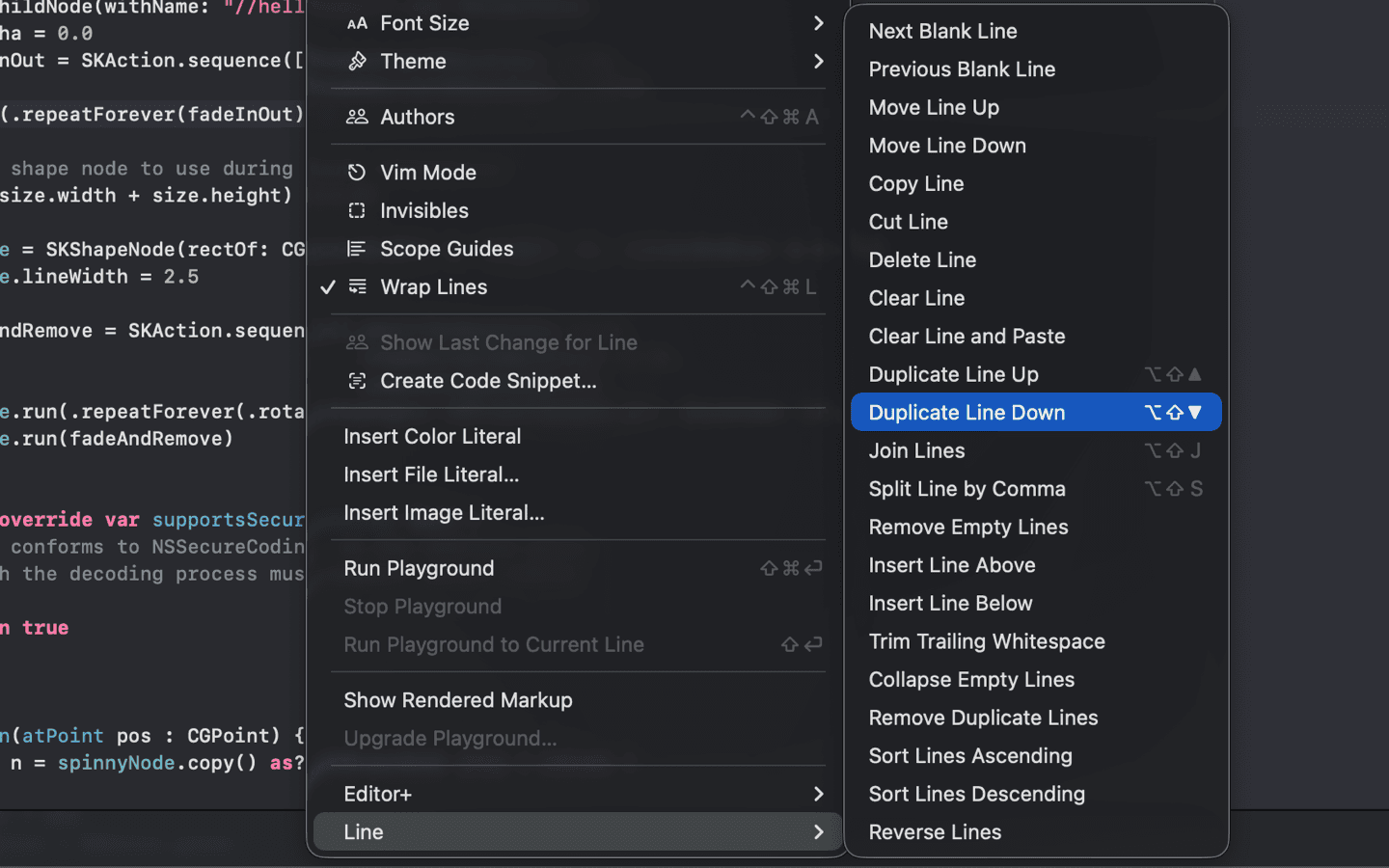
Everything lands under Editor ▸ Line and Editor ▸ Editor+. The Line submenu holds the 22 language-agnostic commands; Editor+ holds the nine that read Swift.

Because the commands operate on the real buffer, undo is Xcode's own undo — one step back, like any other edit.

  • No copy, no paste, no round trip through another app
  • Works on the selection, or on whatever line the caret is in
  • The 22 Line commands work in any file the source editor opens
Xcode — Editor ▸ Line
Xcode's Editor menu open on the Line submenu, listing all 22 LineSmith line commands over Swift code

Bind it once, forget the menu

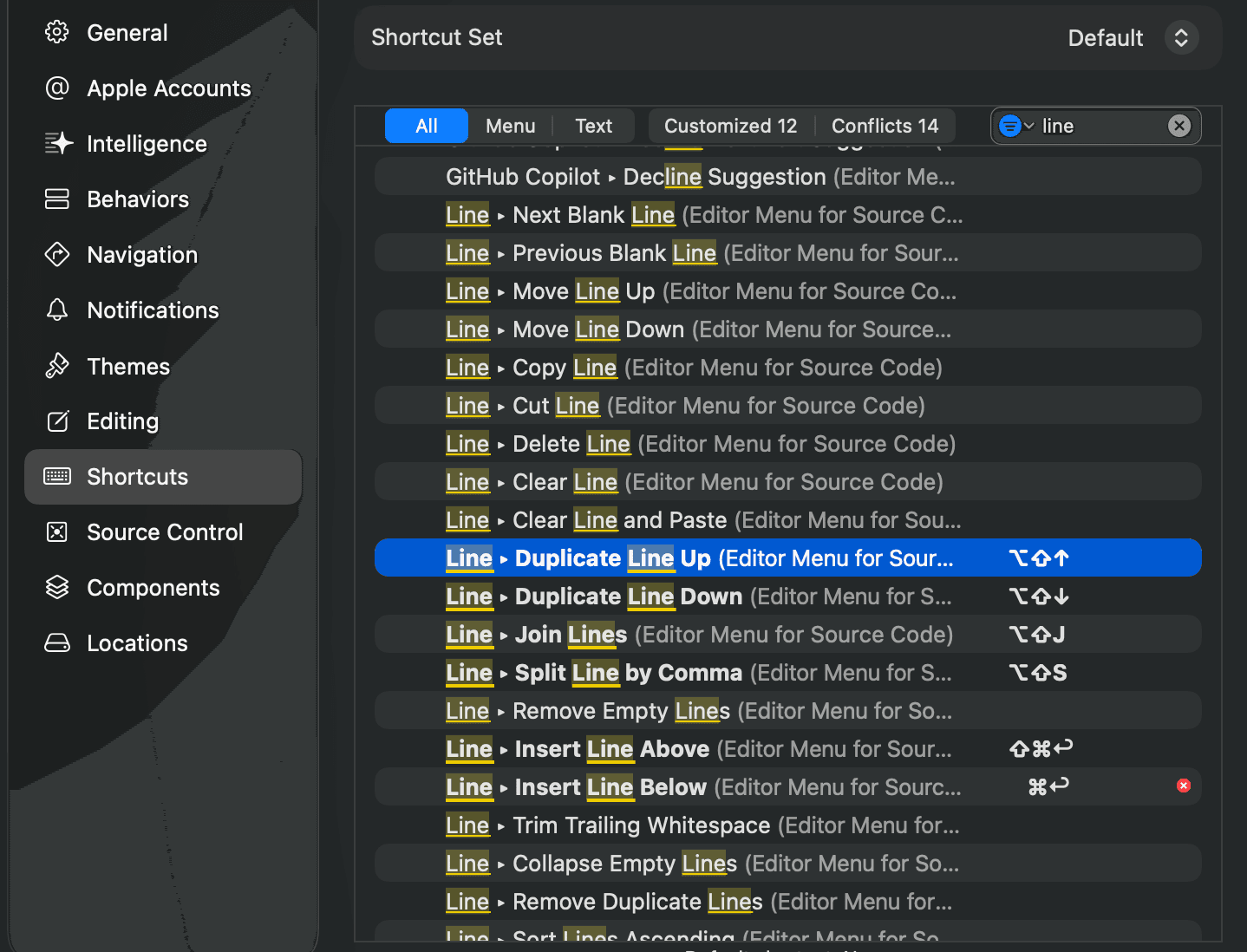
Xcode owns the keyboard shortcuts. Open Xcode ▸ Settings ▸ Shortcuts — the same pane Xcode called Key Bindings before Xcode 26 — search a command by name, and give it whatever chord you like.

Bindings are stored against a command identifier, and LineSmith treats those identifiers as a permanent contract — so a shortcut you set today still works after the next update, and shortcuts set in TextPlus years ago still work now.

  • Shortcuts survive app updates
  • Conflicts are shown by Xcode in the same pane
  • All 19 identifiers inherited from TextPlus are unchanged
Xcode — Settings ▸ Shortcuts
Xcode Settings on the Shortcuts pane, the list filtered to LineSmith's Line commands, with chords already assigned to Duplicate Line Up, Duplicate Line Down, Join Lines and Split Line by Comma
In practice

What a keystroke actually does.

Four of the thirty-one, with the output they really produce — these snippets are taken from the command suite’s own tests.

Split Line by Comma

Editor ▸ Line

One long call becomes one argument per line, each continuation aligned under the opening bracket. Commas inside strings, regex literals and code-completion placeholders are left alone.

Before
try await store.save(article, in: context, mergePolicy: .overwrite)
After
try await store.save(article,                     in: context,                     mergePolicy: .overwrite)

Join Lines

Editor ▸ Line

The inverse, and it knows where a space belongs: one after a comma, none after an opening bracket or before a chained call.

Before
completion(    .success(model),    metadata)
After
completion(.success(model), metadata)

Organize Imports

Editor ▸ Editor+

Sorts and de-duplicates a contiguous run of imports. Comments and #if directives are hard boundaries, so a conditional import block is never reshuffled into the wrong branch.

Before
import UIKitimport Combineimport Foundationimport Combine
After
import Combineimport Foundationimport UIKit

Generate Memberwise Initializer

Editor ▸ Editor+

Reads the struct the caret is in and writes an initializer for its direct stored properties. Computed and static members stay out; a `let` with a value already assigned stays out too.

Before
struct Article {    let id: UUID    var title: String    var isDraft = true}
After
struct Article {    let id: UUID    var title: String    var isDraft = true     init(        id: UUID,        title: String,        isDraft: Bool = true    ) {        self.id = id        self.title = title        self.isDraft = isDraft    }}
The full set

All 31 commands.

The same reference lives inside the app, searchable, so you can find the one you want before going hunting in Xcode’s shortcut settings.

Editor ▸ Line

22

Twenty-two language-agnostic commands. They work on whatever the caret is sitting in — Swift, Objective-C, JSON, a shell script.

  • Next Blank Line

    Move the caret down to the next blank line.

  • Previous Blank Line

    Move the caret up to the previous blank line.

  • Move Line Up

    Swap the selected lines with the line above them.

  • Move Line Down

    Swap the selected lines with the line below them.

  • Copy Line

    Copy whole lines to the clipboard, wherever the caret sits.

  • Cut Line

    Copy whole lines to the clipboard, then delete them.

  • Delete Line

    Delete the selected lines outright.

  • Clear Line

    Empty the selected lines, keeping their indent and their place.

  • Clear Line and Paste

    Empty the selected lines and write the clipboard over them.

  • Duplicate Line Up

    Copy the selection and leave the caret on the upper copy.

  • Duplicate Line Down

    Copy the selection and follow the caret to the lower copy.

  • Join Lines

    Collapse the selection onto one line, spacing it sensibly around brackets.

  • Split Line by Comma

    Break a comma-separated line apart, aligned under its opening bracket.

  • Remove Empty Lines

    Drop the blank lines inside the selection.

  • Insert Line Above

    Open a blank line above, matching the current indent.

  • Insert Line Below

    Open a blank line below, indenting a level after {, ( or :.

  • Trim Trailing Whitespace

    Remove spaces and tabs from the ends of selected lines.

  • Collapse Empty Lines

    Reduce each run of blank lines in the selection to one.

  • Remove Duplicate Lines

    Keep the first occurrence of each exact selected line.

  • Sort Lines Ascending

    Sort selected lines in ascending deterministic text order.

  • Sort Lines Descending

    Sort selected lines in descending deterministic text order.

  • Reverse Lines

    Reverse the order of the selected lines.

Editor ▸ Editor+

9

Nine Swift-aware commands. They read the declaration you are in and decline rather than guess when the file is too tangled to be certain.

  • Remove Comment

    Strip // comments from the selection, leaving code and string literals alone.

  • Add Type Delegate

    Write a delegate protocol for the first type declared in the file.

  • Add Type Extension

    Write an extension on the first type declared in the file.

  • Insert MARK Section

    Insert a // MARK: section placeholder above the current line.

  • Wrap in #if DEBUG

    Wrap selected lines in #if DEBUG and #endif.

  • Organize Imports

    Sort and de-duplicate safe, contiguous Swift import blocks.

  • Wrap in Task

    Wrap selected lines in Task { } using the configured indentation.

  • Generate Memberwise Initializer

    Generate a conservative initializer for stored struct properties.

  • Generate CodingKeys

    Generate CodingKeys from direct stored properties.

Setup

Four steps, once.

macOS gates source editor extensions behind a switch, and Xcode only reads them at launch. That is the whole of it.

  1. Keep LineSmith in your Applications folder

    macOS only offers an extension to Xcode while its app is installed. Moving or deleting LineSmith removes the commands.

  2. Switch the extensions on

    In System Settings, open General ▸ Login Items & Extensions, then Xcode Source Editor, and tick both Line and Editor+.

  3. Restart Xcode

    Xcode picks up the commands at launch. After a restart they appear under Editor ▸ Line and Editor ▸ Editor+.

  4. Assign the shortcuts you want

    Xcode ▸ Settings ▸ Shortcuts, the pane called Key Bindings before Xcode 26. Search a command by name and bind it. Then you can forget the menu exists.

Pricing

Free, and staying free.

LineSmith has been free since 2016. There is no paid tier, no account, no ads and no tracking, and it collects nothing about you or your code.

There is a tip jar in the app if it saves you time. A tip unlocks nothing, because there is nothing to unlock — it just says thanks and pays for the hours that go into keeping the app working with each new Xcode.

  • Small Tip

    A small thank you for the commands you use every day.

    $1.99
  • Generous Tip

    Covers an evening of keeping LineSmith up to date.

    $4.99
  • Very Generous Tip

    Genuinely generous. Thank you.

    $9.99
  • Tips are optional, one-time, and grant no feature. Prices are USD before local tax and vary by storefront.
Formerly TextPlus

Your shortcuts still work.

LineSmith is TextPlus rebuilt. It is the same App Store record, renamed in version 2.0 because the old name collided with an unrelated messaging app.

All 19 command identifiers inherited from TextPlus are unchanged, so the shortcuts you assigned years ago keep working. Version 2.0 keeps each command's familiar purpose while fixing indentation, selection, line-ending and multi-line paste behavior — and adds 12 new commands on new identifiers that replace nothing.

TextPlus was MIT-licensed, and four outside contributors shaped the command set LineSmith inherits:

  • Frédéric RuaudelMove Line Up/Down, Duplicate Line Up/Down
  • Alex Antonyukstruct support for Add Type Delegate/Extension
  • Chip CollierNext/Previous Blank Line
  • GslfCI workflow
Under the hood

Conservative by design.

Command logic lives in a standalone Swift package with its own test suite, so every transformation is exercised without launching Xcode. The two source-generation commands decline outright when the scanner cannot safely read a declaration — a wrong edit to your file is worse than no edit.

The extensions are sandboxed with no network access at all. They receive the buffer from Xcode, change it in memory, and hand it straight back.

Swift 6SwiftUIXcodeKitApp SandboxTested command coremacOS 14+
FAQ

Questions that come up.

The commands do not appear in Xcode. What did I miss?

Almost always one of three things: LineSmith is not in your Applications folder, the extensions are not ticked in System Settings ▸ General ▸ Login Items & Extensions ▸ Xcode Source Editor, or Xcode has not been restarted since you ticked them. Xcode only reads its source editor extensions at launch.

Do my old TextPlus keyboard shortcuts still work?

Yes. Xcode stores a key binding against a command's full identifier, and all 19 identifiers inherited from TextPlus are unchanged in LineSmith. The 12 new commands use new identifiers and replace nothing.

Is LineSmith really free?

Yes. All 31 commands are free, there is no paid tier and no account. The in-app tips are optional, one-time, and unlock nothing — the app is identical before and after one.

Does LineSmith see or send my source code?

No. When you invoke a command, macOS hands the extension the text of the file you are editing; the extension changes it in memory and hands it straight back. Nothing is written to LineSmith's storage or logs, and the two extensions are sandboxed with no network access.

Do the commands work in files other than Swift?

The 22 commands under Editor ▸ Line are language-agnostic and work in any file Xcode's source editor opens. The nine under Editor ▸ Editor+ read Swift syntax and are meant for Swift files.

How do I assign a keyboard shortcut?

Open Xcode ▸ Settings ▸ Shortcuts — Key Bindings if you are on an Xcode older than 26 — and search for the command by name, for example "Duplicate Line Down". Xcode owns the binding, so it survives LineSmith updates.

What does LineSmith require?

macOS 14 or later, and Xcode. The commands run inside Xcode's source editor; the LineSmith app window itself holds the setup instructions, the searchable command reference and the tip jar.

Thirty-one commands. No catch.

Free on the Mac App Store. Requires macOS 14 or later, and Xcode.

Download on the Mac App Store